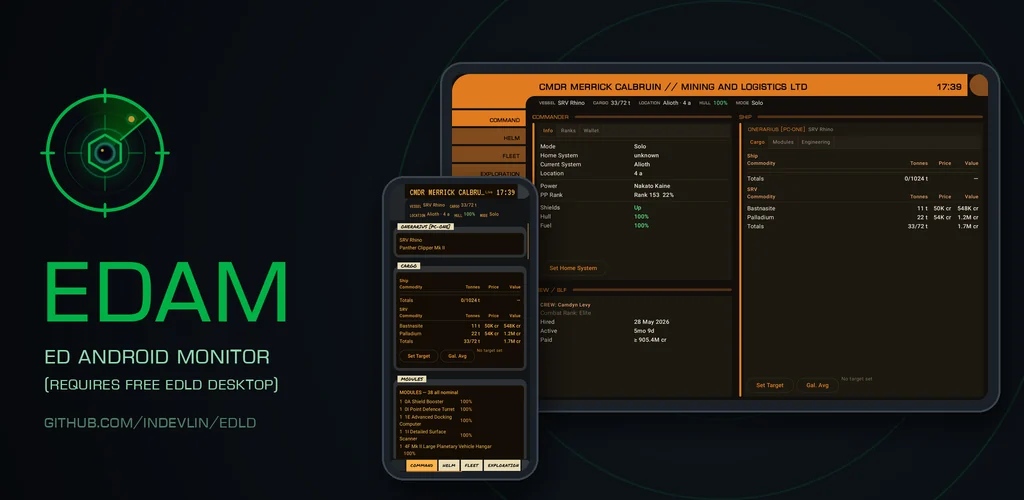
EDAM, the Elite Dangerous Android Monitor, for phones and tablets
EDAM puts EDLD on your Android phone or tablet. Pair it
once with EDLD on the computer you play on, and your commander, ship, cargo,
route, alerts, session and career are a glance away: on the desk beside your
keyboard, propped against the monitor, or in your hand across the room.
It is made for glancing at: open it, see where things stand, put it down. And
when you want to do more than look, it can plot a route, honk the discovery
scanner, or lower the landing gear for you.
Highlights
Every window EDLD draws, on your phone: the same tabs, tables and
colors, from the same data.
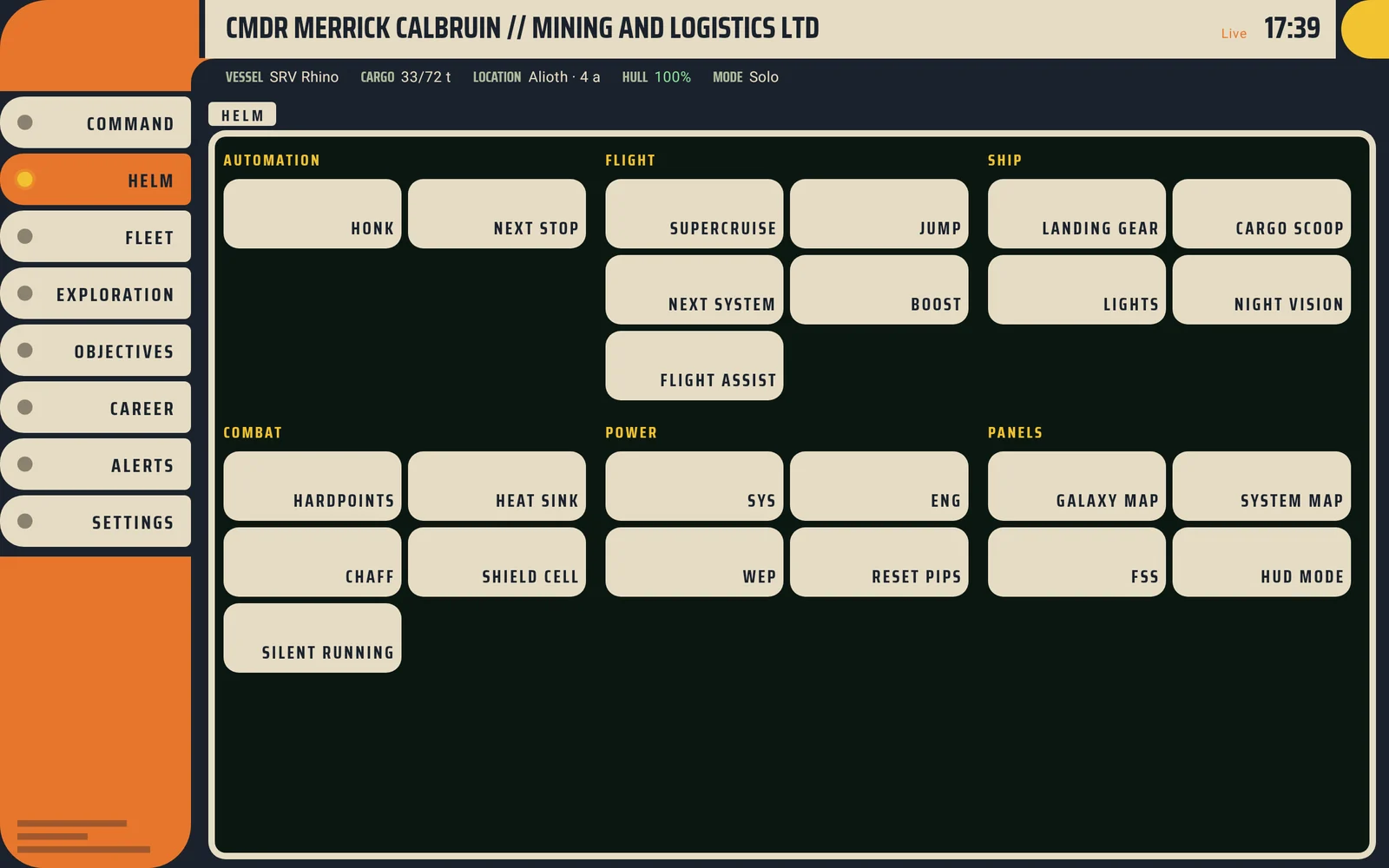
EDCARS on a tablet, drawn to the same layout as the desktop console,
in any of its four consoles: EDCARS, ORDER, REBEL or ROGUE.
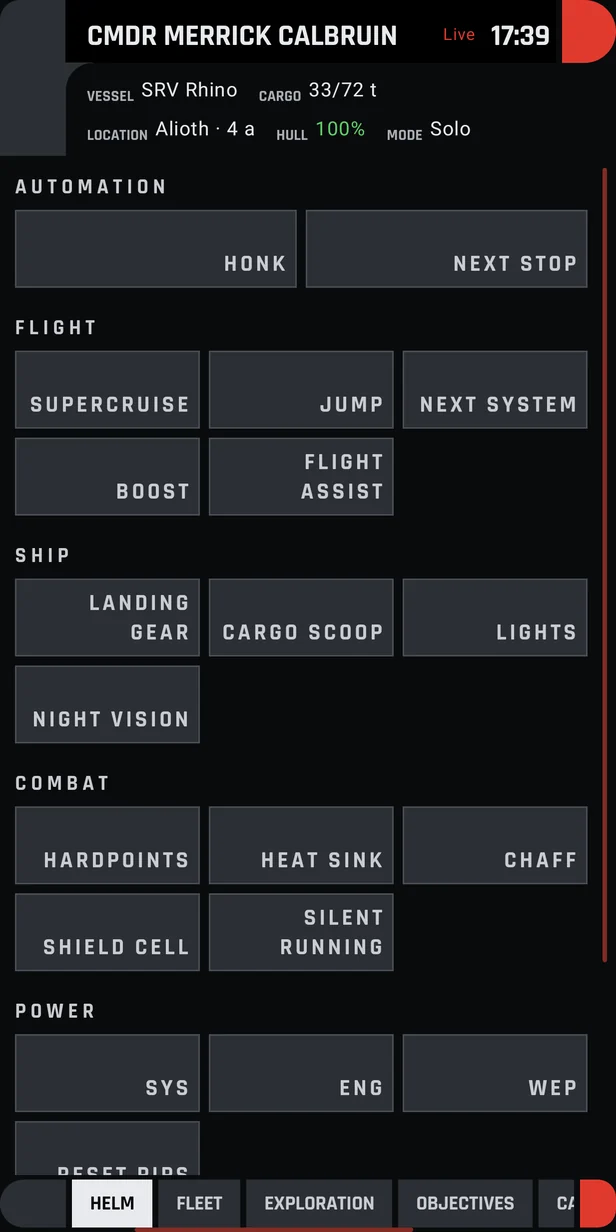
The Helm panel in your hand: honk, plot the next stop, and press the
game’s own controls, grouped as flight, ship, combat, power and panels.
Plot routes from the phone: FSD, neutron, carrier and survey routes,
planned by EDLD and followed on your computer.
Your mining finds: ring hotspots and surface sites in filterable
tables, in a Mining section of their own.
Private by design: a direct, encrypted connection to your own
computer. No account, no cloud service, nothing in between.
EDCARS, in your hand
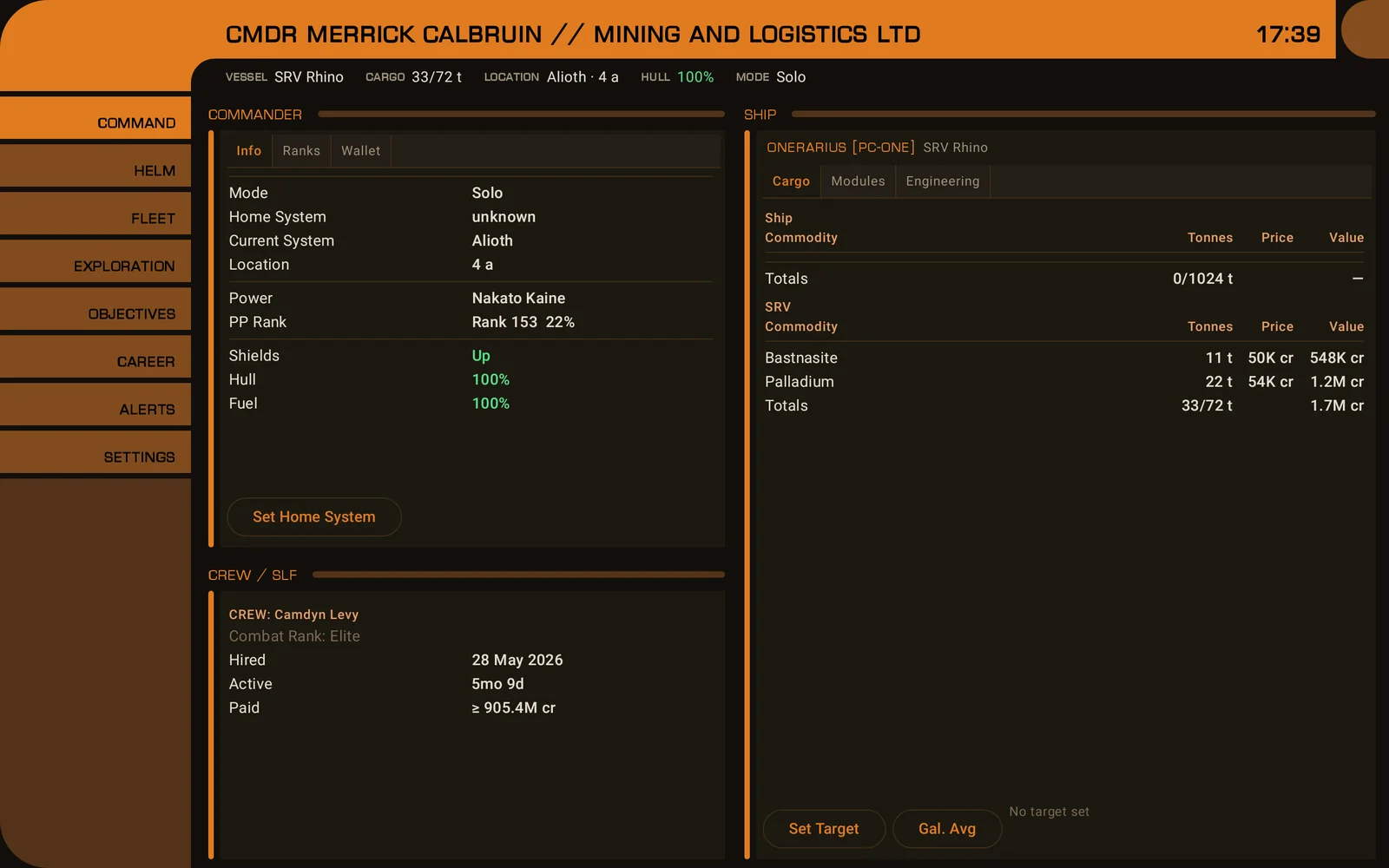
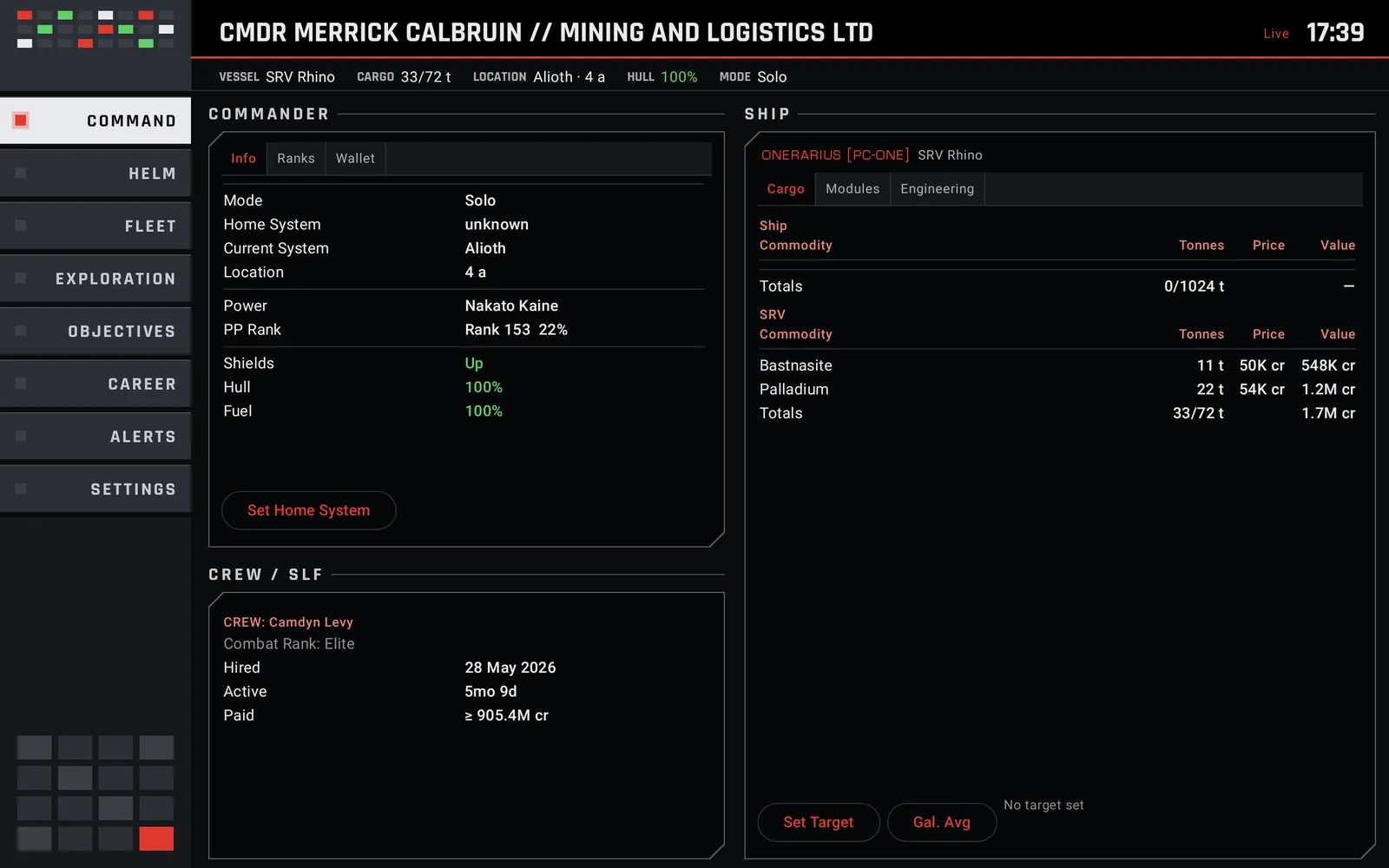
On a tablet, or a phone in landscape, EDAM draws EDLD’s EDCARS console the
way the desktop does: the same header band, the same rail of sections, and
the same framed windows in the same columns, with every tab in the desktop’s
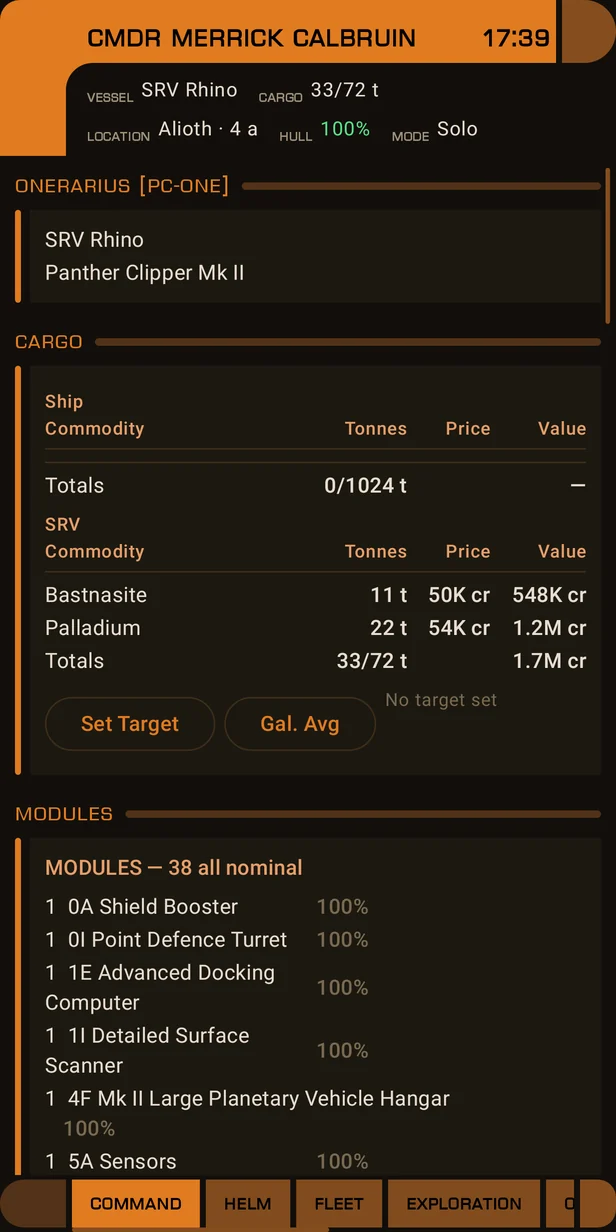
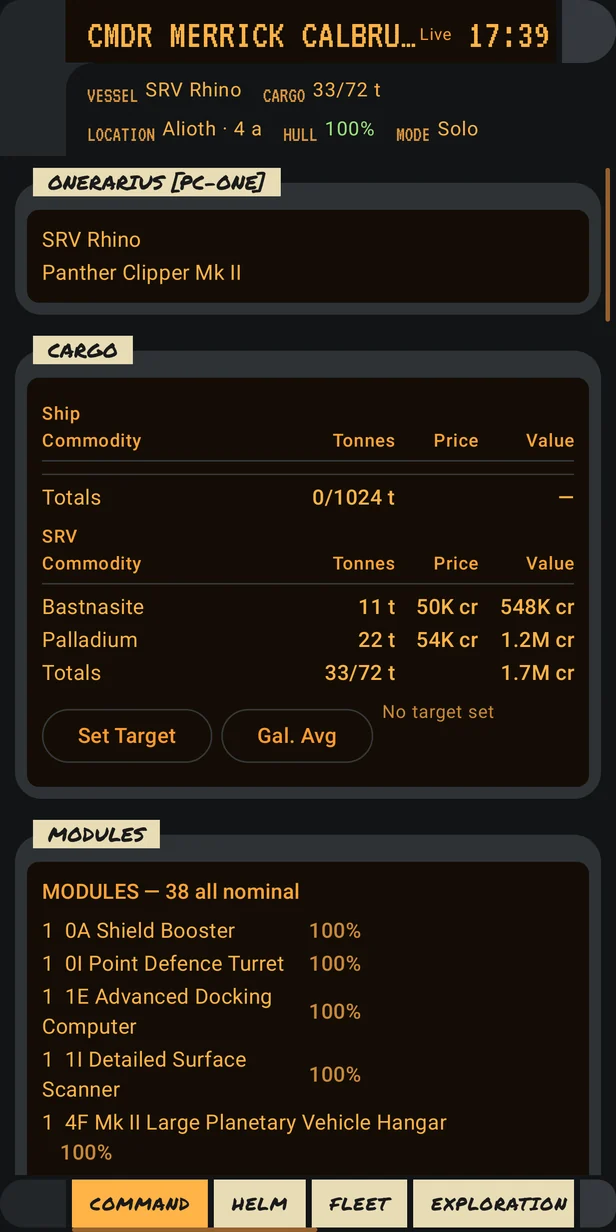
order. In portrait, one section fills the screen and a swipe moves to the
next, with the section pills along the bottom.
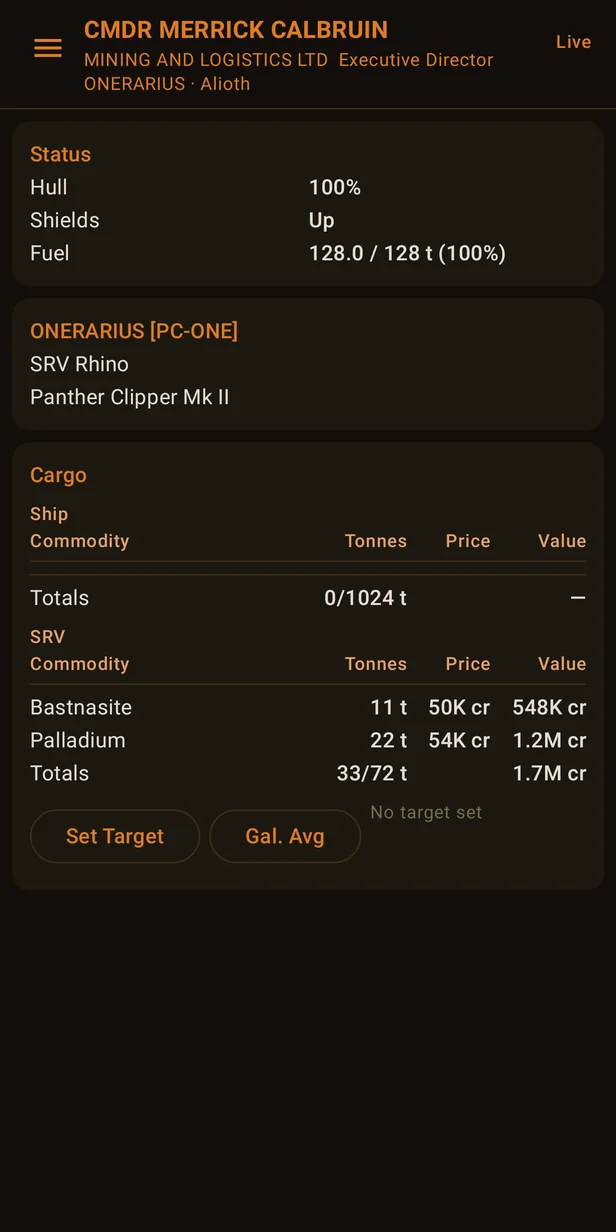
Prefer a list? The Dashboard style is a drawer of pages: Overview, Helm,
Session, Career, Alerts, Commander, Crew, Ship, Colonization, Exploration,
Mining, Missions and Navigation. It shows one column in portrait and an adaptive
grid in landscape. You can also use EDCARS in landscape and the Dashboard in
portrait.
EDCARS’s Command section on a tablet, drawn to the same layout as EDLD’s desktop
On a phone in portrait: one section at a time, with the pills along the bottomThe Dashboard style: a drawer of pages
Four consoles
EDLD’s EDCARS comes in four consoles, and EDAM draws every one of them, on a
tablet or in landscape to the same measurements as the desktop:
EDCARS: the band and the elbow, with rounded pills down the rail
ORDER: an Imperial fleet console of steel pills, indicator lights and
windows behind chamfered black glass
REBEL: a Rebel ops board of cream consoles, round lamps and screens in
bezels under label plates
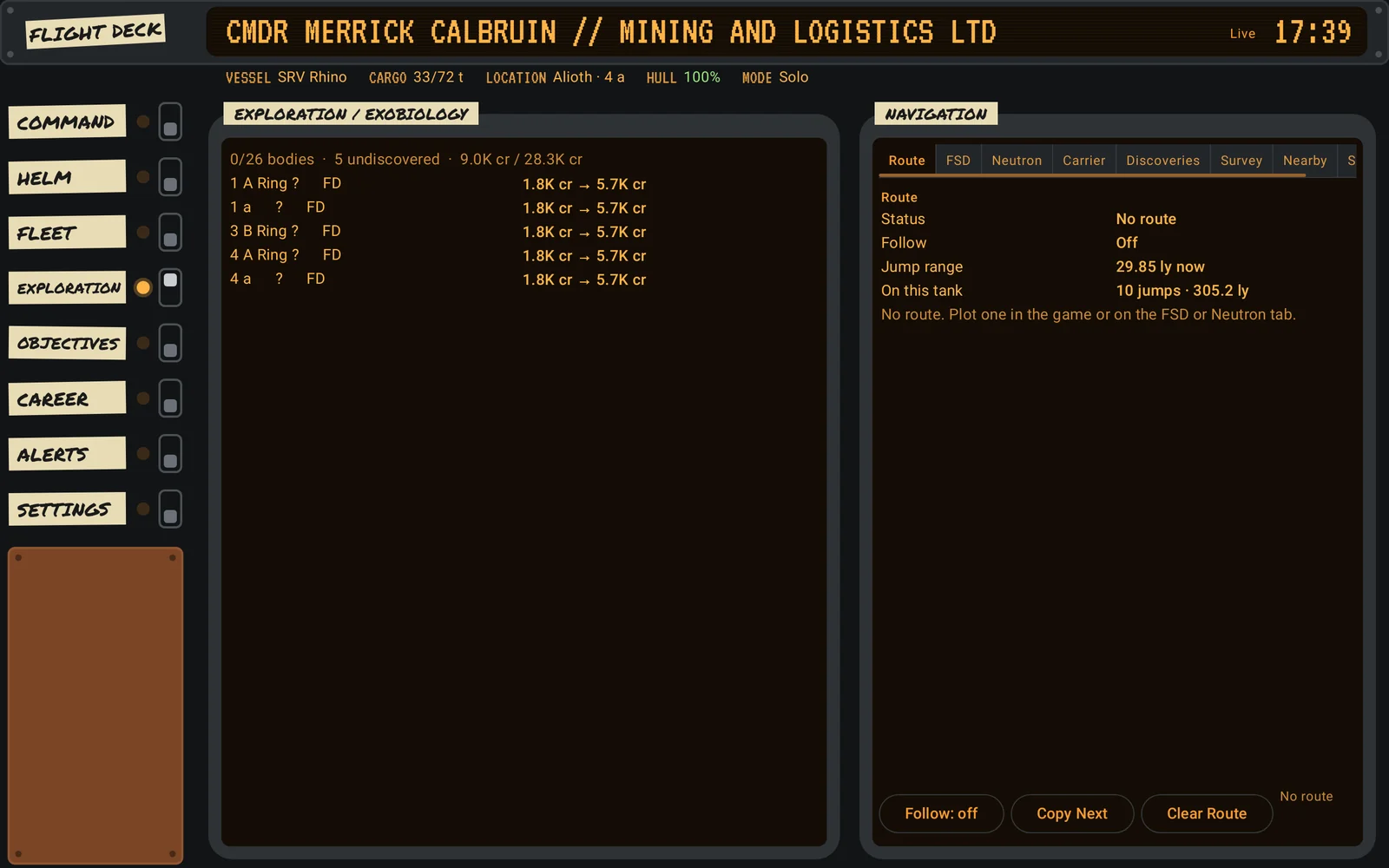
ROGUE: an independent freighter’s cockpit of riveted plate, an amber
CRT, masking-tape labels and toggle switches
In portrait the layout is EDCARS’s own, in the console’s paint and faces.
Settings → Console follows the console EDLD wears, or picks one for the
device, so your tablet can match your desktop or be a different cockpit
entirely.
ORDER on a tabletROGUE on a tablet: the Exploration section
ROGUE on a phoneORDER on a phone: the Helm section
Because every window is described once by EDLD and drawn by each device, a
window EDLD adds or improves reaches EDAM without an app update.
The Helm panel
Turn on Allow paired devices to press keys in EDLD, and EDAM gets EDLD’s
Helm panel: a section of EDCARS, and a page of the Dashboard. Its buttons
press the game’s keys on your computer for you:
Automation: Honk the discovery scanner, or plot the galaxy map to the
next stop of your route
Flight: supercruise, jump, target the next system, boost, flight assist
Ship: landing gear, cargo scoop, lights, night vision
Power: a pip to systems, engines or weapons, or reset them
Panels: the galaxy and system maps, the FSS, and HUD mode
The groups fill as much of the screen as it has, side by side on a tablet and
stacked on a phone. EDAM is only sent the controls you have bound in the
game, and if one can’t be pressed right now, it tells you why.
The Helm section on a tablet, in REBEL
More than a monitor
Navigation. The FSD, Neutron, Carrier, Survey, Nearby, Services and
Discoveries forms are all on the phone. EDAM sends what you enter, EDLD plots
it, and the route becomes the one EDLD follows on your computer.
Window buttons. Follow, Copy Next and Clear Route under Route; Set Target
and Galactic Average under Cargo. Tap the Home System row under Info to set
it, or a colonization site’s Stop tracking row to clear it. Copy Next puts
the next system on your computer’s clipboard, ready for the galaxy map.
End the session. In Solo, with EDLD’s permission, EDAM can end the game
session from Settings, after you confirm.
Alerts you will notice
An urgent alert, such as hull damage, shields down or a fighter lost, flashes
the Alerts pill for ten seconds, then holds it red until you open Alerts. Set
EDLD to switch on alerts, and EDAM brings the Alerts section up for you.
Your theme, everywhere
EDAM follows the color theme, style and console your EDLD is using, custom
themes included, so your phone matches your desktop. You can also pick any of
EDLD’s twelve built-in themes, or any console, directly. Any theme suits any
console.
Private and secure by design
Paired, not signed in. Scan the QR code from EDLD’s Options → Server, or
from edld --pair. There is no account to create.
Direct and encrypted. Your game data travels between your EDLD and your
phone and nowhere else, over TLS 1.3, with both ends’ keys pinned. Your
phone’s key is created in the Android keystore and never leaves the device.
Only while you look. EDAM connects when it comes to the screen and lets
go thirty seconds after it leaves. No background service, no notifications,
no location, contacts or camera permission, and it never scans your network.
Honest when offline. The last snapshot is shown dimmed, with one clear
status: Live, Reconnecting, EDLD unreachable (and when it was last seen),
game not running, or no longer paired.
Requirements
Component
Requirement
Device
Android 10 or later, phone or tablet
Computer
EDLD 20261102 or later (20261105 or later for the consoles, 20261108 or later for the Mining section), with server mode on, or the lighter EDLD-server download
Network
Your phone and computer on the same network, or EDLD reachable from outside it
In EDLD, open Options → Server, turn it on, and choose Show pairing
code.
Install EDAM from
Google Play,
tap Scan QR code, and point your phone at the code. You can also paste
the pairing link instead.
That’s it. EDAM remembers the pairing and reconnects whenever you open it.
Questions
Do I need EDLD?
Yes. EDAM shows what EDLD sees; it does not read the game on its own. EDLD is
free and runs on Windows, macOS and Linux.
Can I use it away from home?
Yes, if EDLD can be reached from outside your network. EDLD can ask your
router to forward the port and keep a DuckDNS name up to date; the
server mode guide
walks through it.
Will it drain my battery?
No. EDAM is only connected while it is on screen, and it runs nothing in the
background. On a charger it keeps the screen on while it is open, so a tablet
beside your keyboard stays live.
Is it free?
Yes. EDAM shows a banner ad along the bottom of the screen. A one-time
purchase in Settings removes it for good, on every device signed in to the
same Google account; Restore purchase beside it picks up a purchase made
on another device. See the privacy policy for how ads are
served.
My phone can’t connect
On the same network, the cause is almost always the computer’s firewall. EDLD
detects the common Linux firewalls and shows the command that opens the port,
and EDAM lists every address it tried and why each one failed.
Elite Dangerous is a trademark of Frontier Developments plc. EDAM is an
independent product of Indevlin, LLC, and is not affiliated with or supported
by Frontier Developments plc.
The complete commander dashboard for Elite Dangerous: your session, your career, your fleet and your route, live as you play, with your ship's controls on buttons. On the desktop, in a terminal, or on your phone.